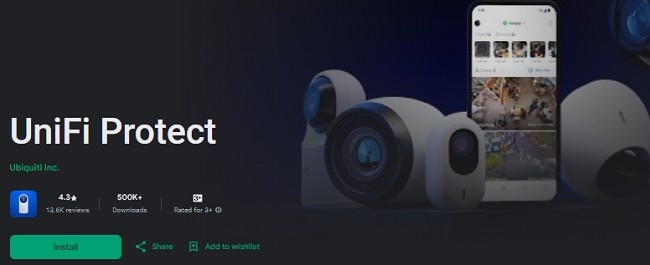
UniFi Protect App - Download & Install Latest Application
In today's world, security is more important than ever, whether you're managing a home or a business. With the increasing need for high-quality video surveillance, UniFi Protect has become one of the leading solutions for streamlining security. The UniFi Protect App provides users with seamless access to their camera systems, offering both powerful functionality and ease of use. In this guide, we will walk you through how to get the UniFi Protect app, its features, and how to use it effectively to manage your security system.
What is UniFi Protect?
UniFi Protect is a security system that allows you to monitor your premises with ease. Developed by Ubiquiti Networks, it provides both hardware (cameras and network video recorders) and software (the UniFi Protect App and cloud-based services) for managing video surveillance in real time. The UniFi Protect App is designed for both residential and commercial use, offering an intuitive interface for controlling and viewing live video feeds, reviewing recordings, and setting up notifications.
Key Features of UniFi Protect:
Low-latency streaming: Get real-time video streams with minimal delay.
Data privacy: Cloudless recording storage ensures your data remains secure.
Timelapse footage scrubbing: Quickly navigate through hours of footage to find specific events.
Personalized notifications: Customize alerts based on individual, vehicle, and environmental triggers.
How to Download & Install UniFi Protect App?
Before you can take full advantage of the features offered by UniFi Protect, you need to install the UniFi Protect App on your mobile device or computer. The app is available for both iOS and Android devices, and the installation process is simple. Here's how to get it:
Step 1: Check System Requirements
To ensure that your mobile device is compatible with the UniFi Protect App, you should check the following system requirements:
iOS: iOS 12 or later
Android: Android 7.0 or later
Ensure your device has a stable internet connection to download and use the app effectively.
Step 2: Download the App
The UniFi Protect App is available for free on both the Apple App Store and Google Play Store. Simply follow these steps:
For iOS users:
Open the App Store on your iPhone or iPad.
Search for "UniFi Protect" in the search bar.
Tap "Get" to download and install the app.
For Android users:
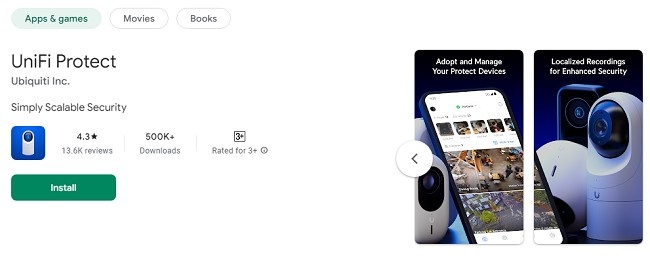
Open the Google Play Store on your Android device.
Search for "UniFi Protect."
Tap "Install" to begin the download and installation process.
Once the app is downloaded and installed, you can proceed to the next steps to configure and use it.
Step 3: Set Up the App
To use the UniFi Protect App, you'll need a UniFi Protect system, including UniFi cameras, a network video recorder (NVR), and a UniFi Protect Cloud Key or a compatible Ubiquiti device. If you don't have these devices yet, you'll need to purchase them first.
Setting up your UniFi Protect system:
Install your UniFi cameras in the desired locations, ensuring they are within range of your network.
Set up your NVR to manage recordings and store footage.
Configure your UniFi Protect Cloud Key (or compatible device), which will serve as the hub for your entire system.
Once your system is physically set up, you'll need to connect it to the UniFi Protect App.
How to Use UniFi Protect App on Your Devices?
Now that you have the app installed and your system set up, let's dive into the key features of the UniFi Protect App and how to use them to manage your security needs.
1. Adopt Your Devices
The first step after installing the app is to "adopt" your UniFi Protect devices. This means connecting your cameras, NVR, and other devices to your UniFi Protect account. Here's how to do it:
Open the UniFi Protect App on your device.
Tap on the "Devices" tab from the main dashboard.
Select the option to "Adopt a new device."
Follow the on-screen instructions to add each device (cameras, NVR, etc.) to your system. Ensure that each device is powered on and connected to your network.
The app will guide you through each step, allowing you to quickly add all your devices.
2. Stream Live Footage
One of the core functions of the UniFi Protect App is live video streaming. With the app, you can access real-time video feeds from any of your connected cameras. Here's how to view live footage:
From the main dashboard of the app, tap on the "Cameras" section.
Select the camera you want to view.
You’ll now be able to stream live footage with low latency, allowing you to monitor your property in real time.
The app supports multiple camera views, so you can monitor multiple areas simultaneously if you have several cameras set up.
3. Review Localized Recordings
In addition to live video streaming, the UniFi Protect App also allows you to review past recordings. Whether you want to check a specific event or browse hours of footage, the app makes it easy. Here's how:
From the app’s main dashboard, tap on the "Recordings" section.
Select the camera and the time frame you want to review.
Use the intuitive playback controls to fast-forward, rewind, or scrub through the footage.
Tap to download any localized recordings to your device for offline viewing.
The ability to scrub through hours of footage quickly is a key feature of the app, allowing you to pinpoint specific moments efficiently.
4. Set Up Alerts & Notifications
UniFi Protect allows you to customize notifications for different types of activity. You can personalize alerts based on the detection of individuals, vehicles, or environmental changes (such as motion or sound). This ensures you're only notified about events that matter to you.
To configure notifications:
Go to the "Settings" section of the app.
Select "Alerts" or "Notifications."
Choose the type of notifications you want (e.g., motion detection, person detection, vehicle detection).
Configure the threshold for alerts (e.g., sensitivity levels).
Select whether you want to receive push notifications, emails, or both.
Personalized notifications help reduce unnecessary alerts and ensure you're only alerted when important events occur.
5. Use the Timelapse Feature
Another useful feature of UniFi Protect is the ability to scrub through timelapse footage. This is especially helpful when you need to review long hours of footage but want to skip to the most relevant parts. The timelapse tool condenses hours of footage into a shorter time frame, making it easy to spot events or anomalies.
To use timelapse footage:
Open the "Recordings" section.
Select the desired camera and time range.
Tap the "Timelapse" option.
Adjust the speed to quickly skim through hours of footage.
This feature is incredibly useful when trying to locate a specific event or moment in time.
6. Cloudless Recording Storage
One of the standout features of the UniFi Protect system is its cloudless recording storage. Unlike many other surveillance systems that store video footage in the cloud, UniFi Protect keeps all recordings local to your network. This means you have full control over your data and avoid the risks associated with storing sensitive information online.
All recordings are saved to the NVR or other local storage device connected to your system, ensuring that you can review footage at any time without concerns about privacy or security breaches.
Advanced Features & Tips
1. Multi-Site Management
If you have multiple properties or business locations, the UniFi Protect App allows you to manage all of them from a single interface. You can easily switch between sites to monitor security feeds from different cameras and review recordings. This feature is especially beneficial for businesses or individuals with multiple locations.
2. Security Groups & User Access
You can create different user profiles with varying access levels, allowing you to give limited access to certain people (like employees or family members). Each user can have their own set of permissions, ensuring the security system is always under control.
3. Integration with Other UniFi Devices
UniFi Protect integrates seamlessly with other UniFi devices like UniFi Access, UniFi Networking products, and UniFi LED lighting. By integrating multiple UniFi products, you can create a more cohesive and automated security setup.
Conclusion
The UniFi Protect App is a powerful tool for managing your security cameras and keeping your premises safe. With its low-latency streaming, customizable notifications, easy device adoption, and advanced features like timelapse footage scrubbing and cloudless storage, it offers a comprehensive solution for both residential and commercial users.
By following the steps outlined in this guide, you can easily get started with the UniFi Protect App and make the most of its features. Whether you're monitoring a single home or a multi-location business, UniFi Protect ensures you can stay connected to your security system at all times.
Updates